Push notifications and doorbell on Android
To ensure push notifications and the video doorbell sounds work correctly on Android devices, you need to adjust the system settings.
1. Allow push notifications
Open Settings on your device, go to the Apps section, and locate the TapHome app.
In the app settings, enable Notifications and make sure all notification types are allowed.
2. Disable battery optimization in Android
In Settings, go to the Battery or Battery management section.
Find Battery optimization and locate the TapHome app.
Change the setting to Don’t optimize or Allow in background.
3. Disable manufacturer-specific battery optimization
Most Android devices have additional settings that vary by model. Below are the most common manufacturers:
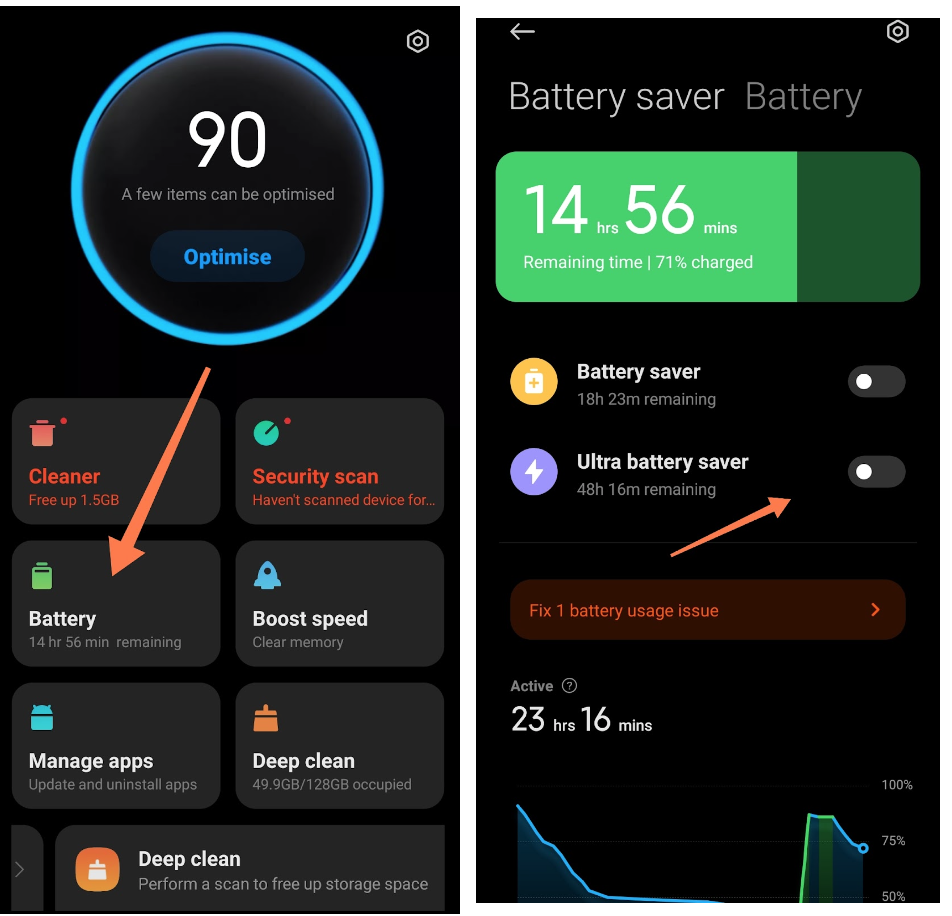
Xiaomi
Open the Battery section in the Security app.
Turn off Battery saver and Ultra battery saver.
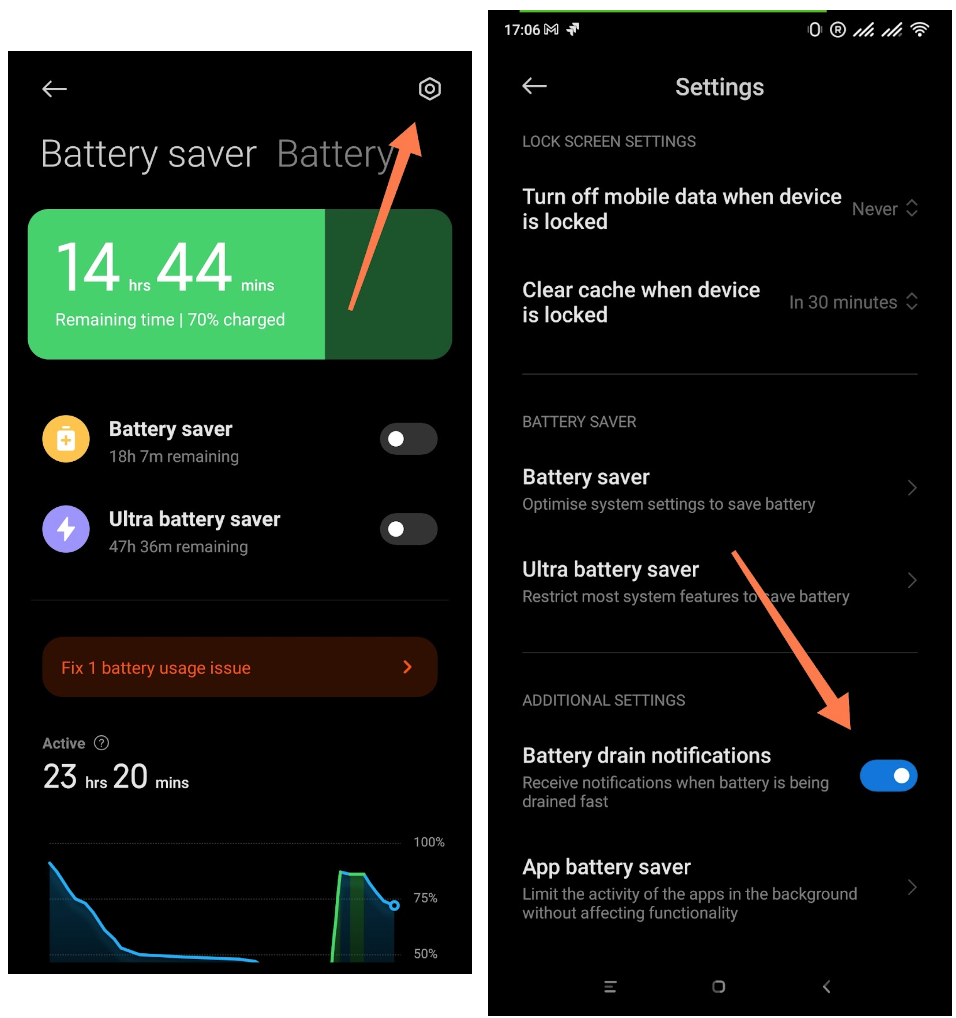
Battery settings
Go to Settings.
Enable Battery drain alerts.
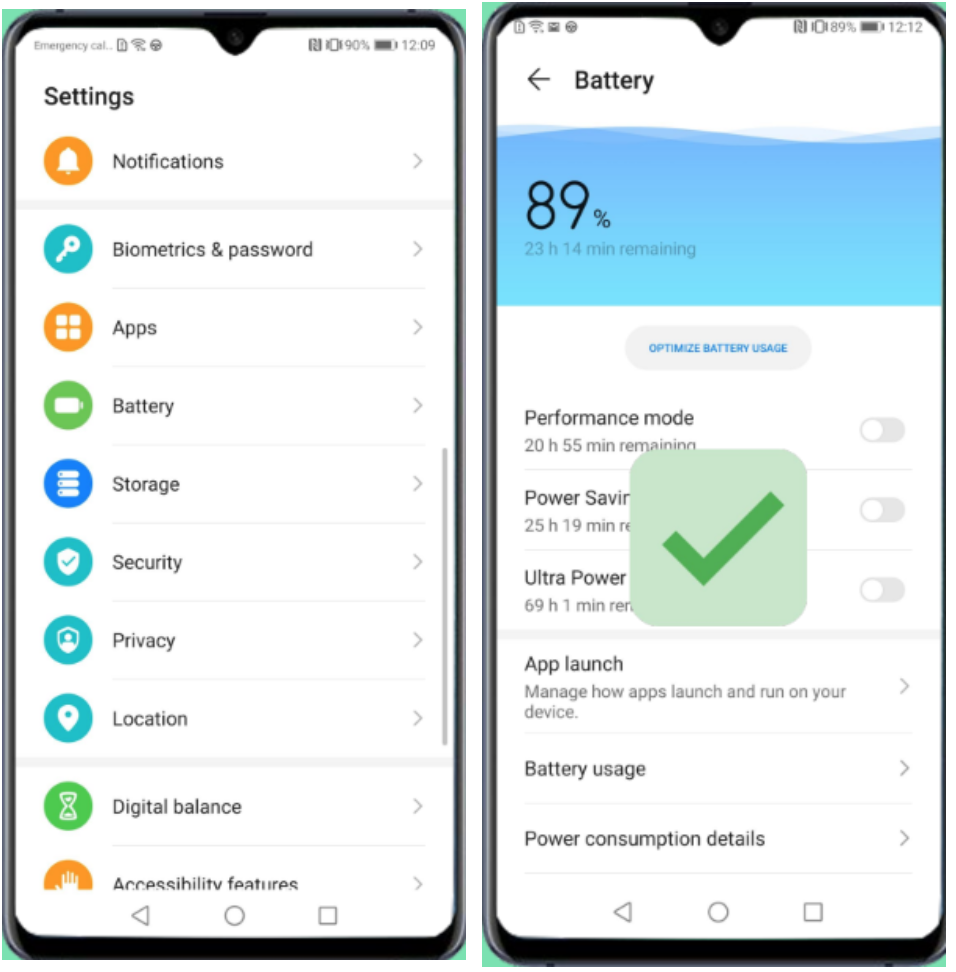
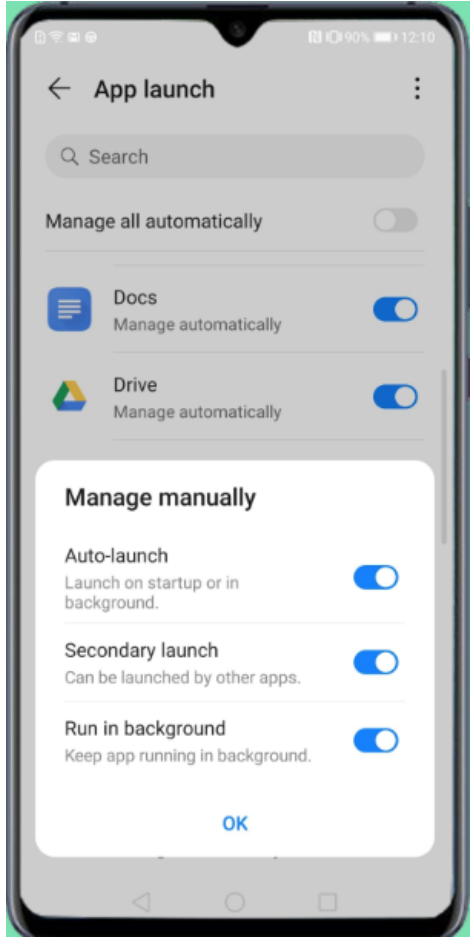
Huawei
Go to Battery settings.
Disable Performance mode, Power saving, and Ultra power saving.
TapHome app
Find the TapHome app.
Disable Automatically manage.
Enable Run in background.
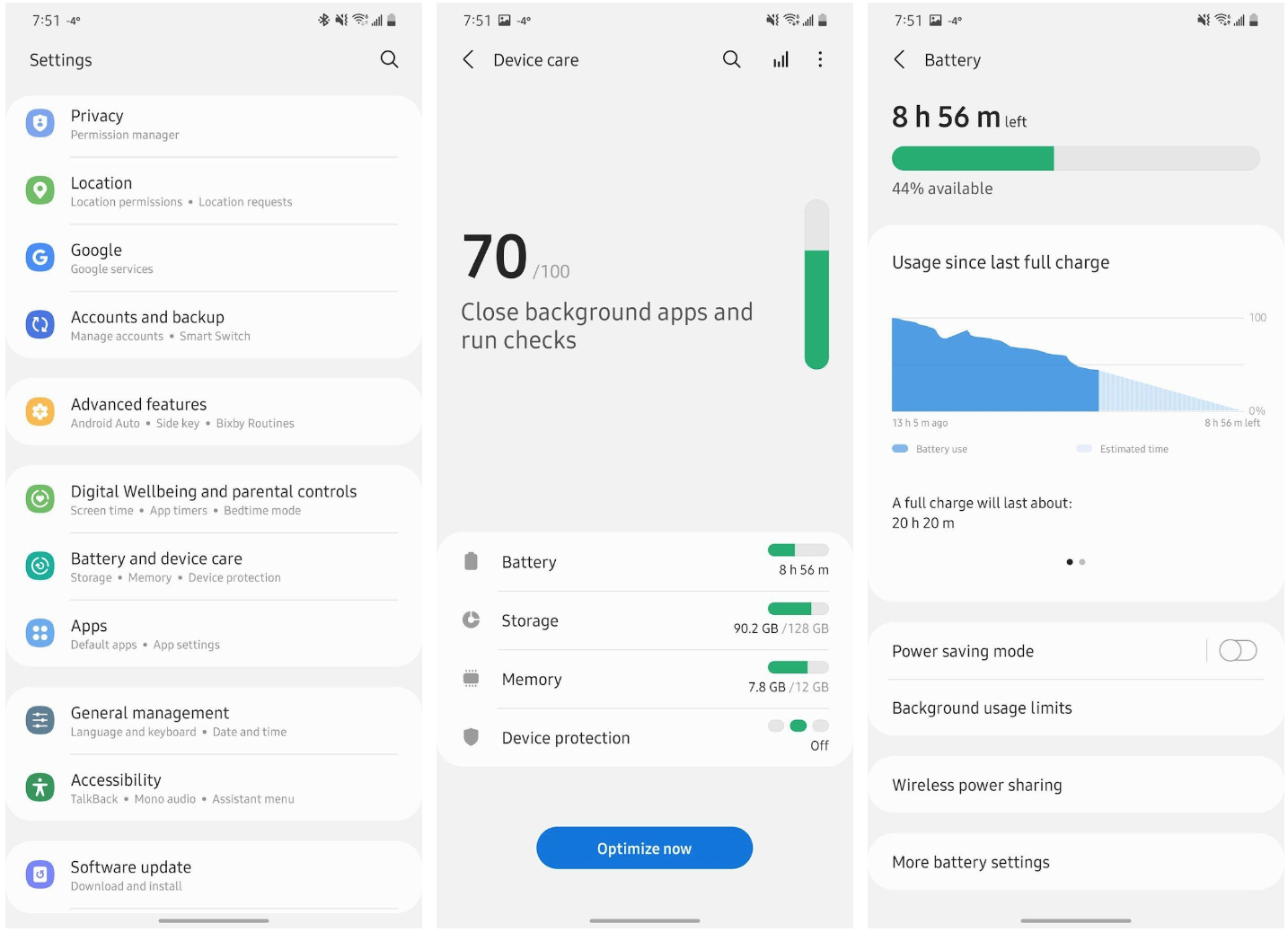
Samsung
Open Settings.
Go to Battery and device care → Battery → Background usage limits.
Select Never sleeping apps.
Tap ( + ).
Find the TapHome app and add it to the list.