“Hey Siri, open the gate”
The TapHome control unit establishes a secure connection with its cloud server, allowing users to remotely control user-defined devices via URL requests in real time. This integration enables quick actions without the need to open the TapHome app or even unlock the phone (for example, via Siri).
Security Measures
Every web request must include a security token. This token prevents unauthorized access. It is important to:
- Never disclose this token on the internet.
- Never send it via unsecured communication channels.
- If you suspect it has been compromised, immediately change the security token.
Activating TapHome API on Core
To activate the TapHome API:
- Open Settings on your TapHome Core.
- Go to Publish Devices.
- Add a new interface: TapHome API.
- Define which devices you want to control in this way. Remember that anyone with your security token can control these devices.
- Open a device from the list. Examples of URL requests for common actions will be displayed.
- Example: Pressing a button to open the garage door: https://api.taphome.com/api/TapHomeApi/v1/setDeviceValue/5?token=abcdef01-2345-6789-0abc-def012345678&valueTypeId=52&value=1
- Click the URL to copy it to the clipboard.
You can find more technical details about modifying the URL in the TapHome API documentation.
iOS: Siri Shortcuts
To set up a Siri shortcut:
- Open (or install) the Shortcuts app from Apple.
- Select Create Shortcut.
- Choose Add Action.
- In the first section, select Web.
- Under Web Requests, select Get Contents of URL.
- Paste the URL you copied from the TapHome app (Settings → Publish Devices → TapHome API) into the URL field.
- Name the shortcut (for example, “Open the gate”).
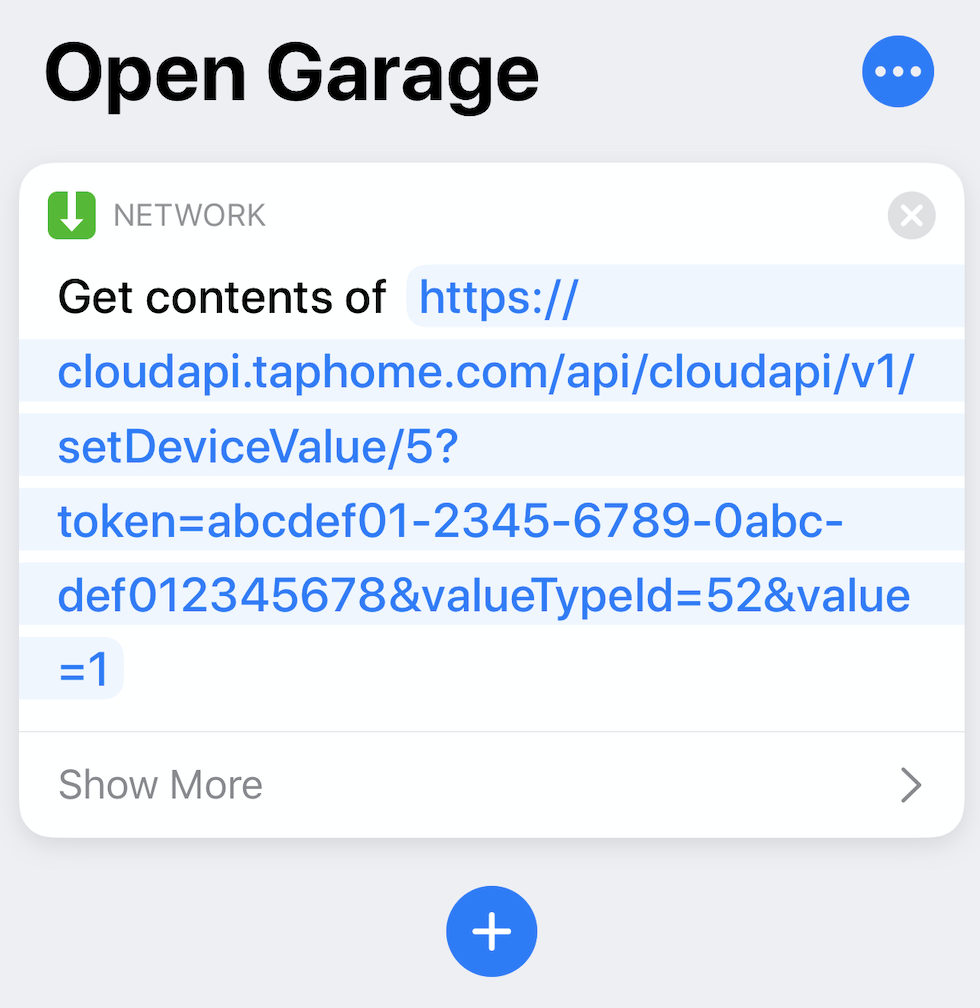
- Save it.
- You can test the shortcut by pressing the play button in the bottom-right corner or by saying “Hey Siri,” followed by the name of your shortcut (for example, “Hey Siri, open the gate”).
Android: Custom Widgets
To create a custom widget on Android:
- Download a third-party app that supports sending HTTP requests, such as HTTP Request Shortcuts.
- In the app, create a New Shortcut.
- Set its name and choose an icon.
- In the Basic Request Settings, select the GET method and paste the URL copied from the TapHome app.
- (Optional) You can change Response Handling to Toast Response (errors only) for clearer feedback.
- In the context menu, select Place on Home Screen.
- Your new shortcut will now appear on your phone’s home screen.