For Windows 7 and Windows 8, the TapHome app is not available in the Microsoft Store. It must be installed manually from a ZIP archive.
Downloading the application
- Download the appropriate version from Google Drive
- Choose:
- TapHome Official - stable version for end users
- TapHome Next - beta version with upcoming features
Installation
- Extract all files from the ZIP archive into a folder of your choice (e.g.,
C:\Program Files\TapHome) - Open the extracted folder
First launch
- Run the file TapHome.Client.Desktop.Wpf.exe
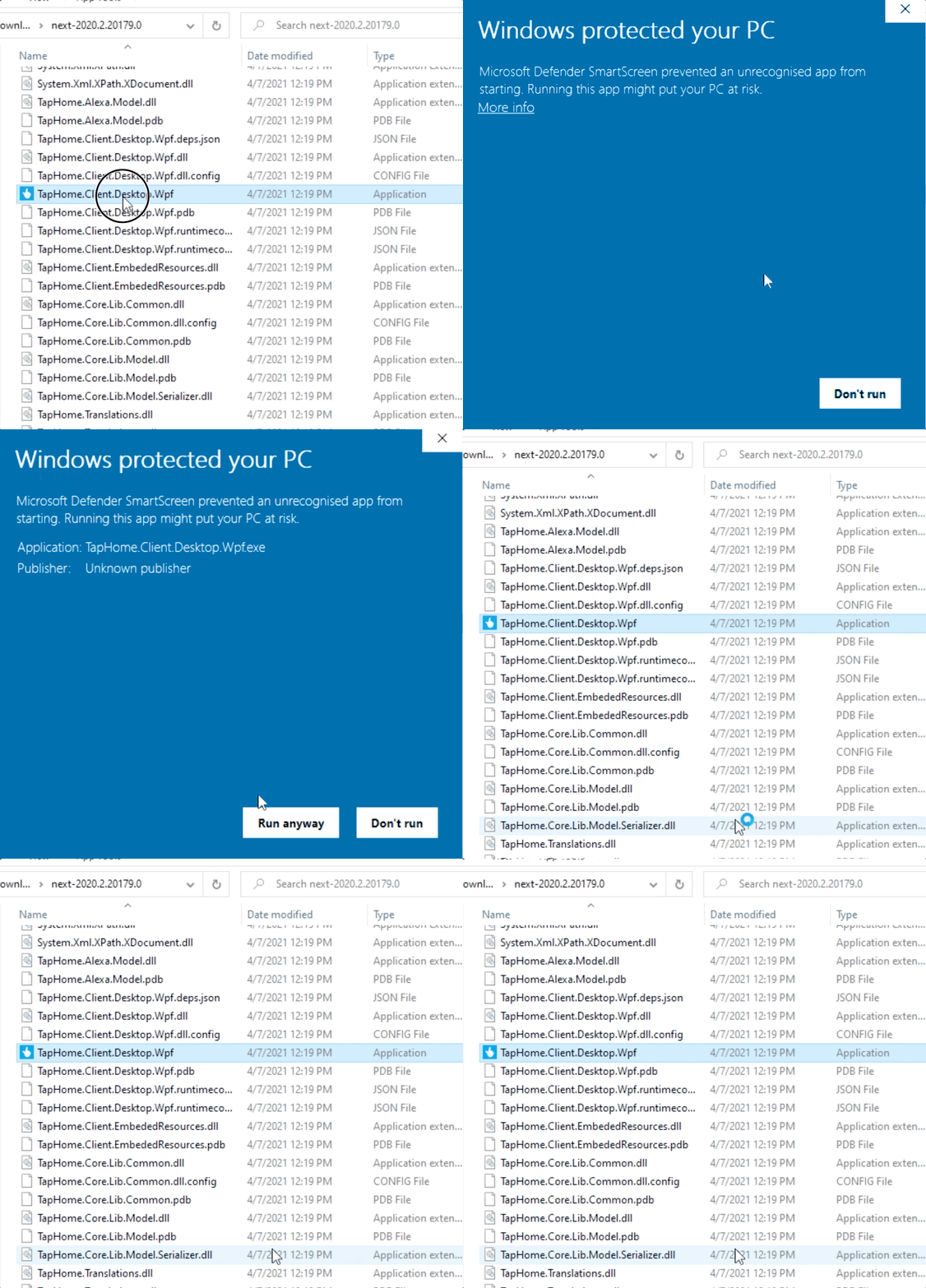
On first run, Windows will display a SmartScreen warning. This is normal behavior for apps downloaded from outside the Microsoft Store.
- Windows will display a warning: “Windows protected your PC”
- Click “More info”
- Click “Run anyway”
Setup for Windows 7
For Windows 7, you need to set the application to Windows Vista compatibility mode.
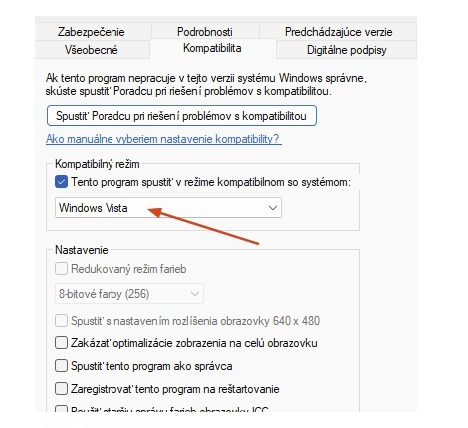
- Right-click the file TapHome.Client.Desktop.Wpf.exe
- Select Properties
- Go to the Compatibility tab
- Check “Run this program in compatibility mode for:”
- From the dropdown menu, select Windows Vista
- Click OK
Using the application
After successful startup:
- Sign in to your TapHome account
- Choose your location
- The application is ready to use
For easier access, create a desktop shortcut to the file TapHome.Client.Desktop.Wpf.exe.
Updating
The application does not update automatically. To install a newer version:
- Download the latest version from Google Drive
- Close the running application
- Replace the old files with the new ones
- Run the application again
Troubleshooting
The application won’t start on Windows 7
- Make sure you have Windows Vista compatibility mode enabled
- Check that all Windows updates are installed
- Try running the application as an administrator (Run as administrator)
The SmartScreen warning appears at every start
- This is normal behavior for apps downloaded from outside the Microsoft Store
- Always click “More info” → “Run anyway”
The application appears blurry
- Right-click TapHome.Client.Desktop.Wpf.exe
- Select Properties → Compatibility
- Check “Disable display scaling on high DPI settings”