1. Add KNX gateway to TapHome bus
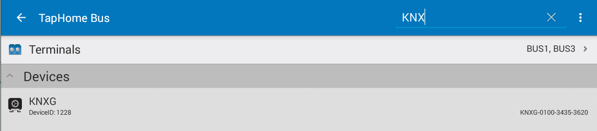
For adding KNX gateway to TapHome Bus use the same procedure as for any TapHome device. Choose in TapHome Bus - Find new devices - and wait until KNX Gateway is added to bus. Now you can find it in TapHome Bus devices:
2. Add new interface
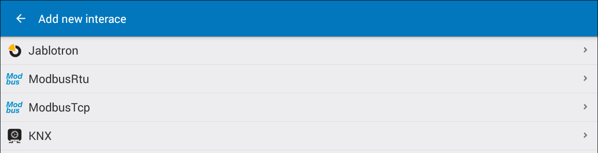
In Hardware option choose Add new interface and select KNX from the list:
In KNX interface click on KNXGatewayId:

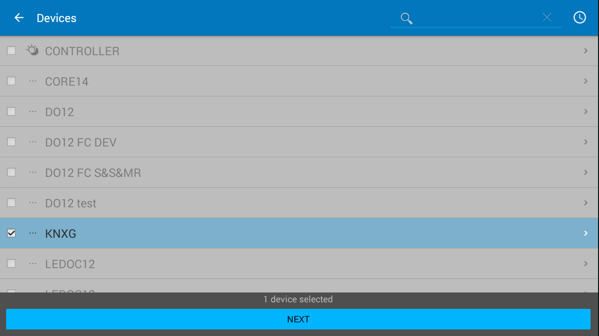
In opened list of devices select KNX Gateway (KNXG) and click Next:
3. Add KNX devices
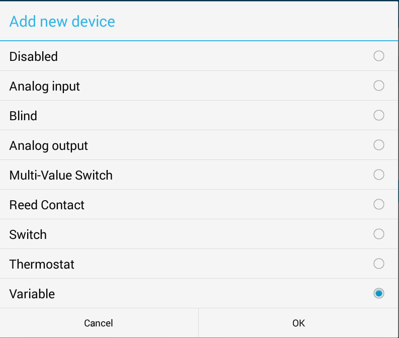
In KNX interface now click on Add device. In opened supported list of devices choose the device and click OK:
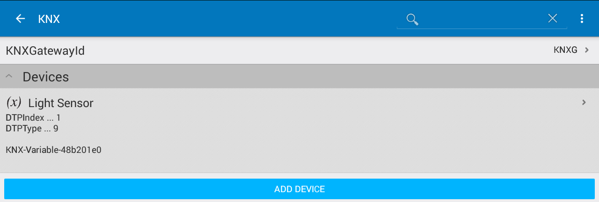
Now in KNX Interface you will see the added device:
Click on the device, select Service Settings, click on tab Device and fill the device parameters defined in ETS for KNX BAOS Gateway:
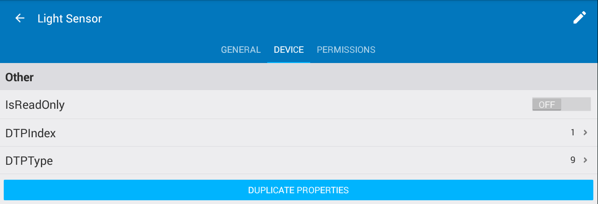
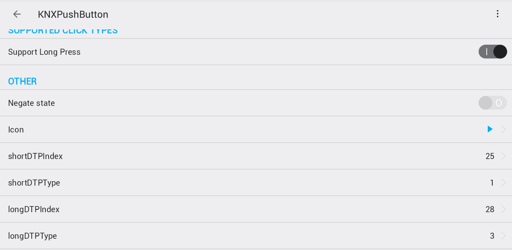
DTPIndex is the data point number defined, and DTPType is the data point type.
Select back and save parameters. Now the device is configured and data should be updated from/to KNX bus.
4. Devices with multiple datapoints
4.1 Thermostat
Opening Thermostat definition will show following data points:
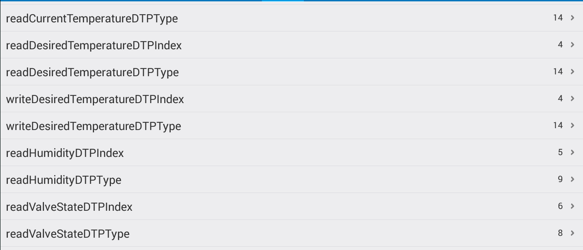
If there is no humidity measurement include in device set this to 0 - Disabled
4.2 Blind
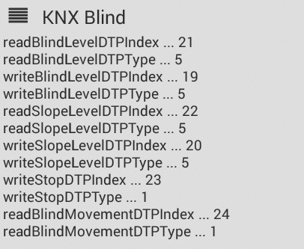
Opening Blind definition will show following data points:
4.3 Push button
Besides using classic push buttons, TapHome also works with design KNX push buttons.
In the description below, the configuration enables all the precise control options as they are usual in TapHome:
- Light switching
- Scene sequencer
- Blinds control with different responses to short press and long press
- Continuous dimming while the push button is held
Set Channel function to Dimming:
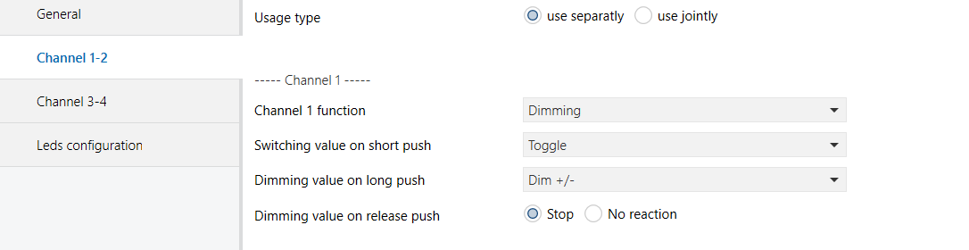
Two data point types are generated - switching and dimming.

Define 1 Bit data point type for Short press and 4 Bit data point type for Long press:


Create Group Addresses for both Short press and Long press and link the devices:


In TapHome, map both Short press and Long press: