Steps for configuring energy meters
Unbind the bus terminal
- Go to Settings → Hardware → TapHome Bus.
- Unbind the bus terminal to which the energy meters are connected.
Add new interface
- Go to Settings → Hardware → Add new interface → Modbus RTU.
- Go to Add from template , locate your energy meter and select Add .
Assign the terminal
- Open the meter details.
- At the top, go to Terminals and assign Bus1, Bus2 or Bus3.
Connect the meters one by one
- Do not connect all meters at once; start with the first meter.
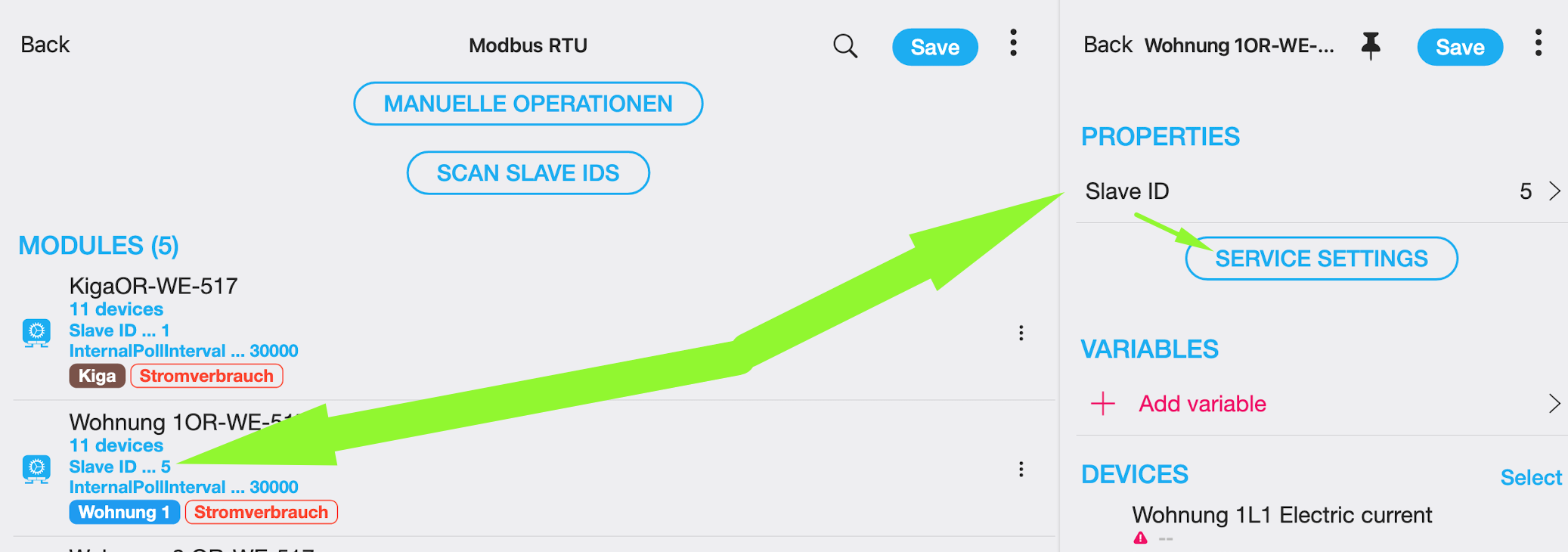
- Do not connect all meters at once; start with the first meter.
For the first meter, assign a high Slave ID
- Avoid setting the Slave ID to 1 (the default value from the factory).
- Example: If you have 5 meters, set the Slave ID of the first meter to 5.
Adjust the Slave ID in the service settings
- Click on Service settings .
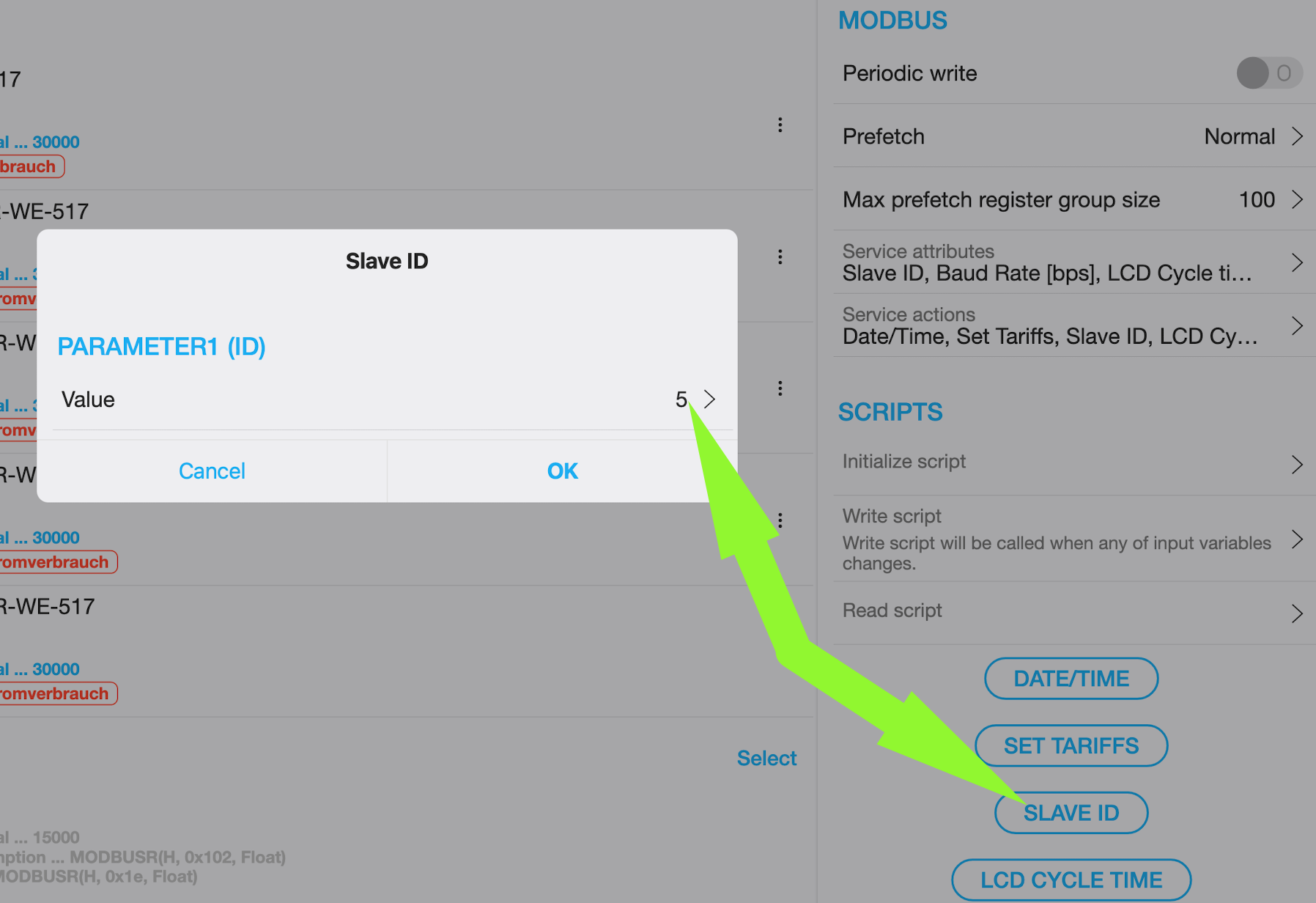
- Scroll down and click on Slave ID (the service action “Slave ID”, not the module communication setting).
- Assign the value 5 (if you are configuring 5 meters).
- Save Service settings
.
Connect the second meter
- Now connect the second meter to the same bus as the first meter.
- Repeat the same sequence:
- Set a higher Slave ID
- Go to Service settings
- Scroll down
- Click on Slave ID
- Assign the value 4 (if this is the second of 5 meters).
Repeat for the remaining meters
- Continue configuring each meter one by one, following the same procedure.