This feature applies to existing devices (Menu → device(s) ) and during configuration of TapHome Bus modules (Menu → Hardware → TapHome Bus → Module).
How to Edit Multiple Devices
1. Enter Selection Mode
Tap and hold the first device until its icon changes to a selection icon, or click the Select button on the right-top of each group.
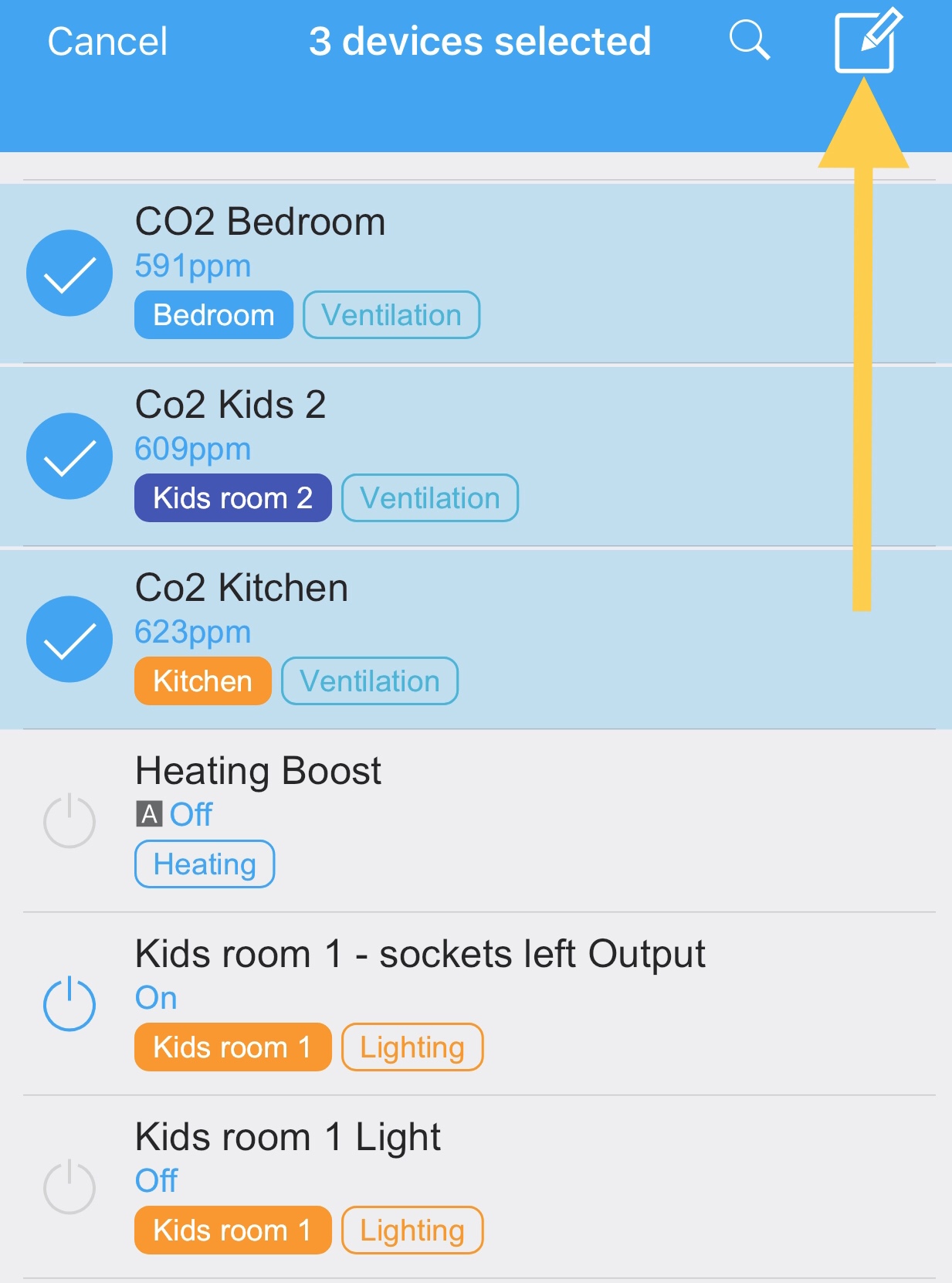
2. Select Devices
Once in selection mode, you can:
- Tap to select or deselect individual devices
- Use the right-top button to Select all or Deselect all devices from a group
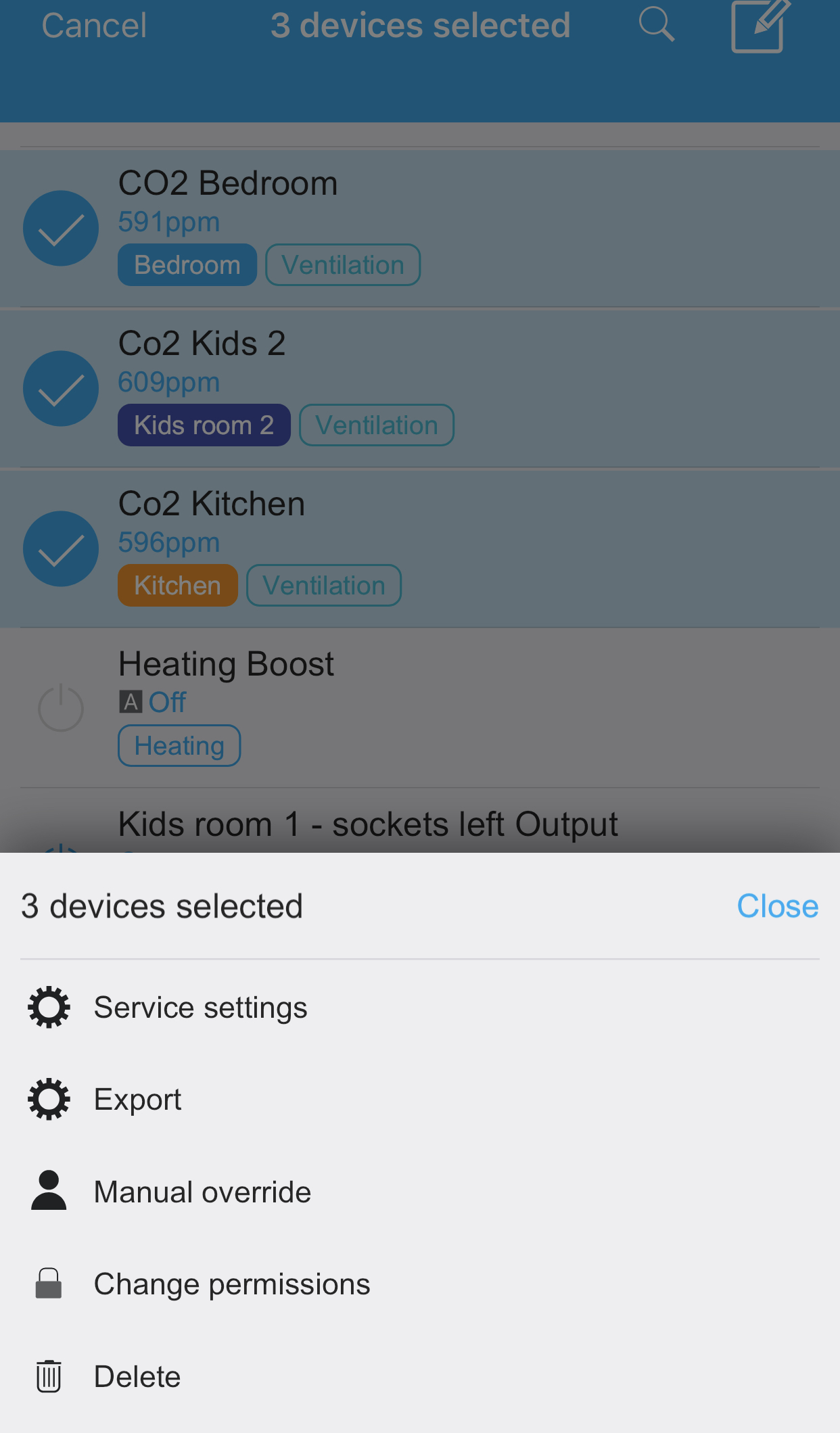
3. Edit Attributes
Once the selection is done, tap the button in the top right corner to access editing options.
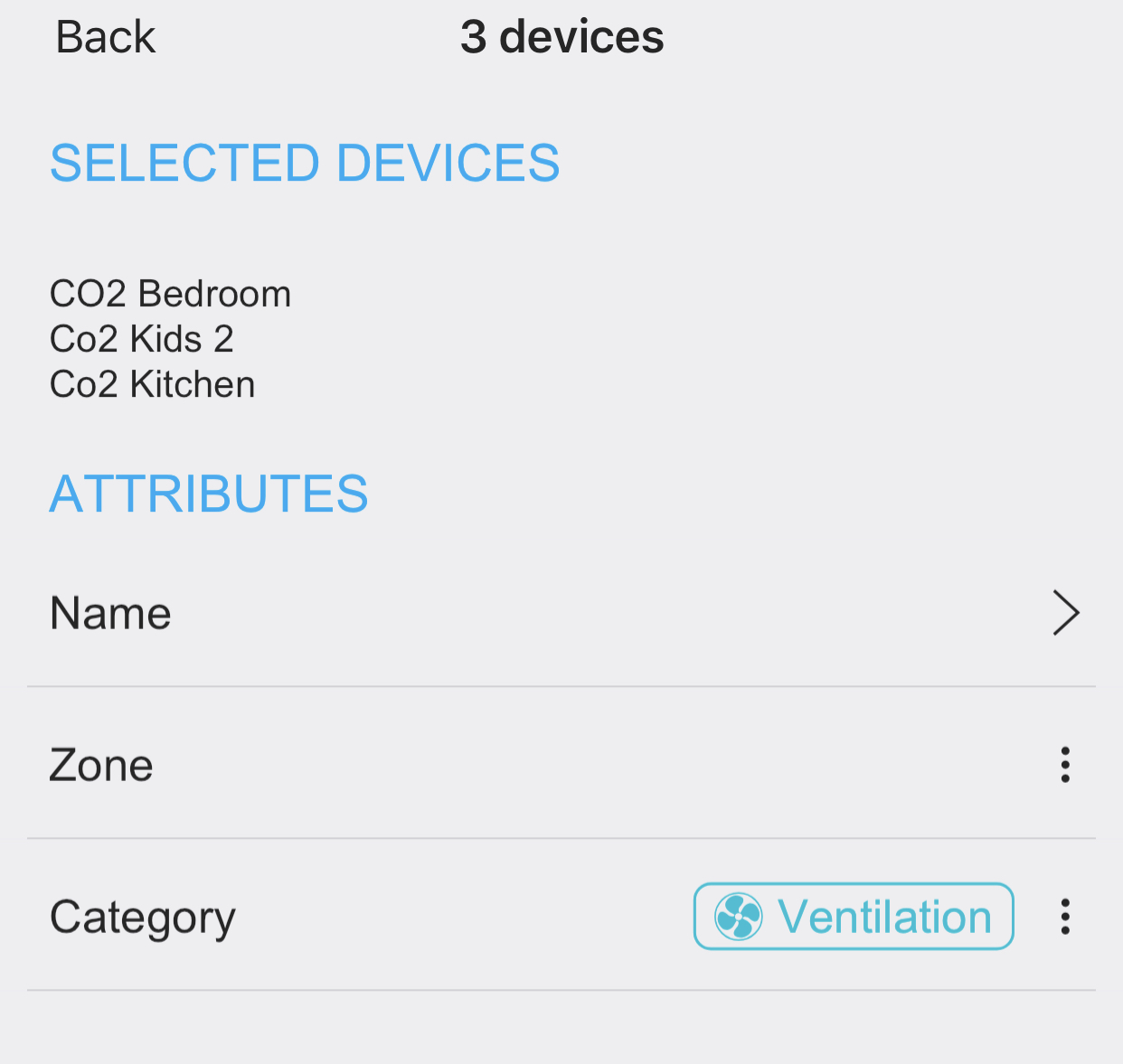
Attribute Intersection: The editing screen displays only attributes that are common to all selected devices. If you select devices of the same type (e.g., all thermostats or all blinds), you will see the complete set of attributes. If you select devices of different types, only shared attributes (like Name and Zone) will be available for editing.
Important: Name and Zone attributes are empty because one or more selected devices contain different values. Editing any attribute sets the same value to all selected devices.
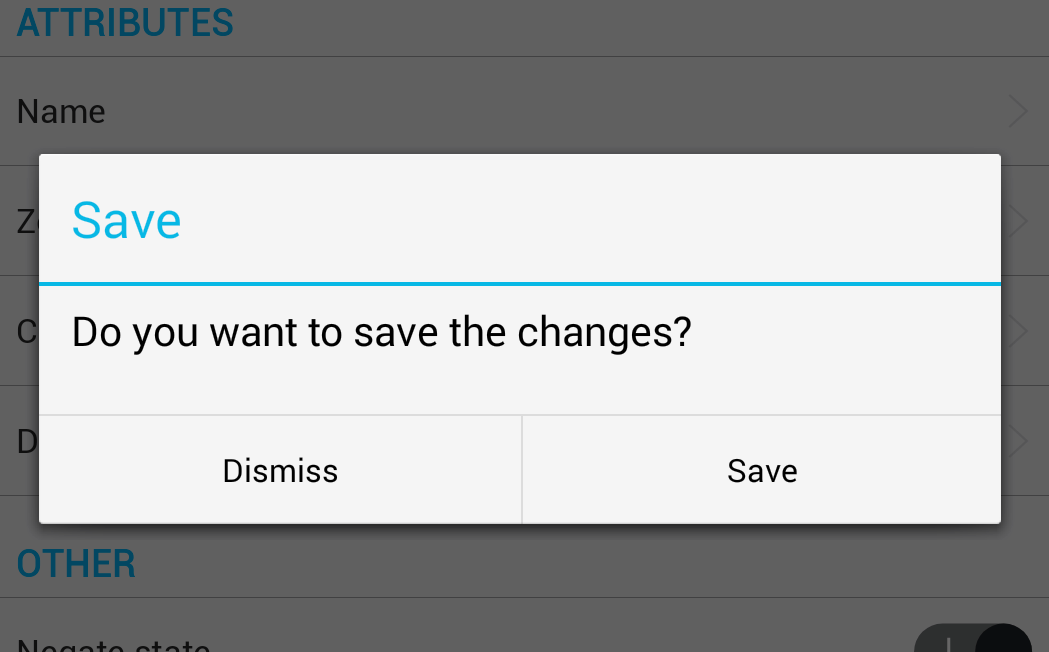
4. Save Changes
Tap the Back button to finish editing and save changes.
Use Cases
This bulk editing feature is especially useful for:
- Setting the same zone for multiple devices in a room
- Applying identical configuration to similar devices
- Quickly organizing newly added devices
- Standardizing device settings across multiple units