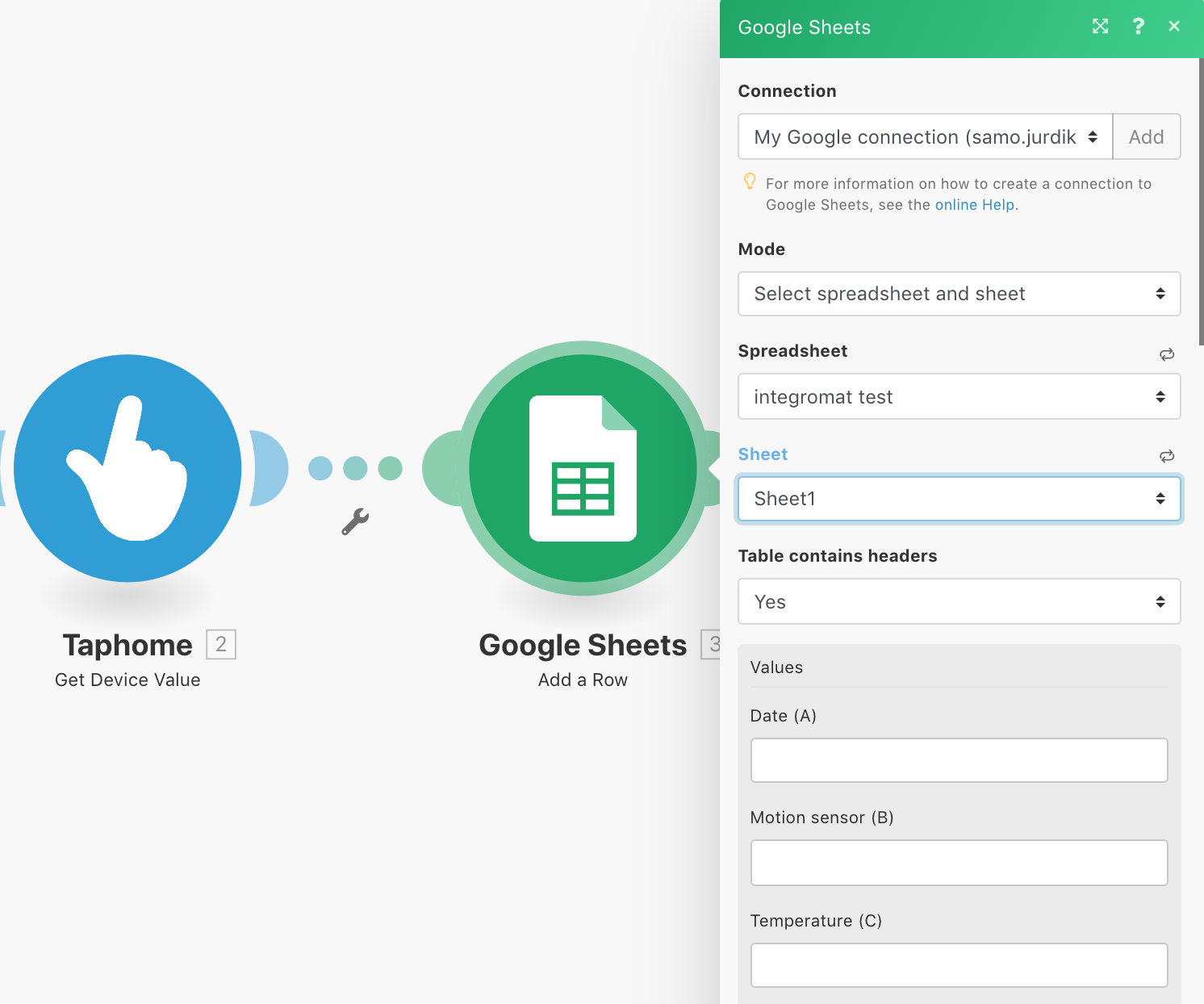
Step 1 - TapHome Setup
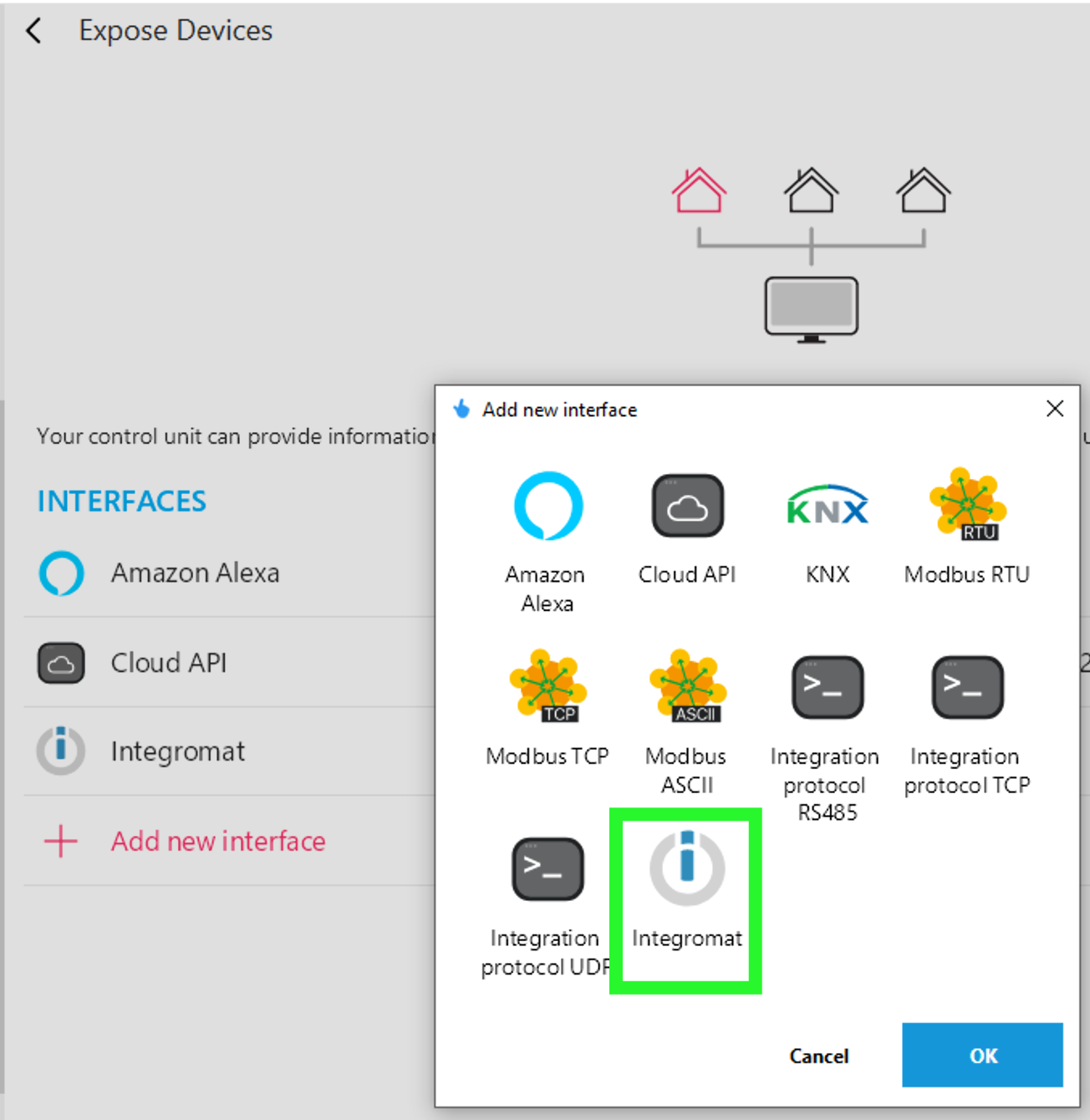
In the TapHome App, navigate to Menu > Settings > Expose Devices > Add new interface and select Make.com. After adding it, select Add Device to choose which devices should export data to Google Sheets.
Step 2 - Google Spreadsheet Creation
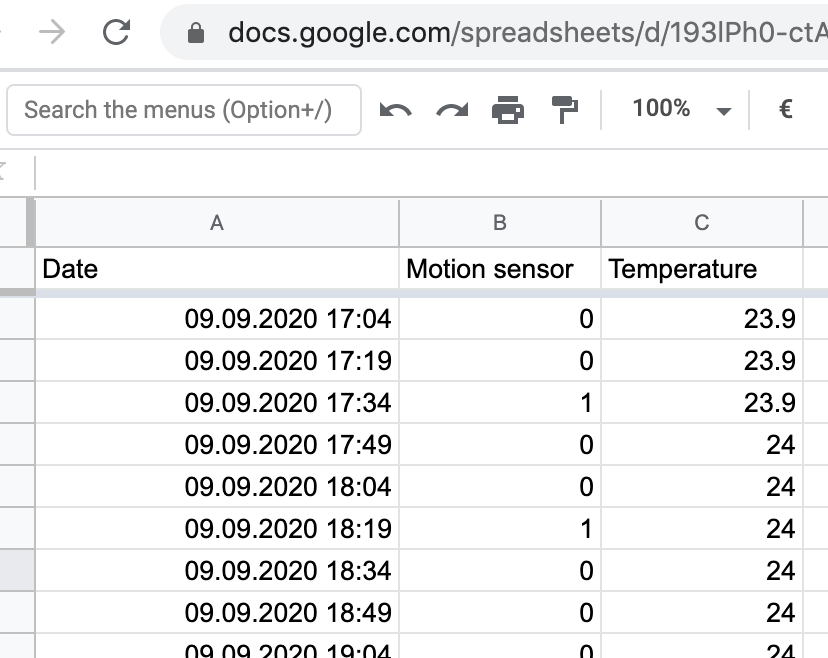
Create a Google Spreadsheet with columns matching the data you wish to capture from TapHome.
Step 3 - Make.com Account & Scenario
Establish a Make.com account and create a new scenario at https://www.make.com/en/register. Search for both TapHome and Google Sheets services and proceed.
Step 4 - TapHome Integration Options
Click the TapHome icon to access two primary functions:
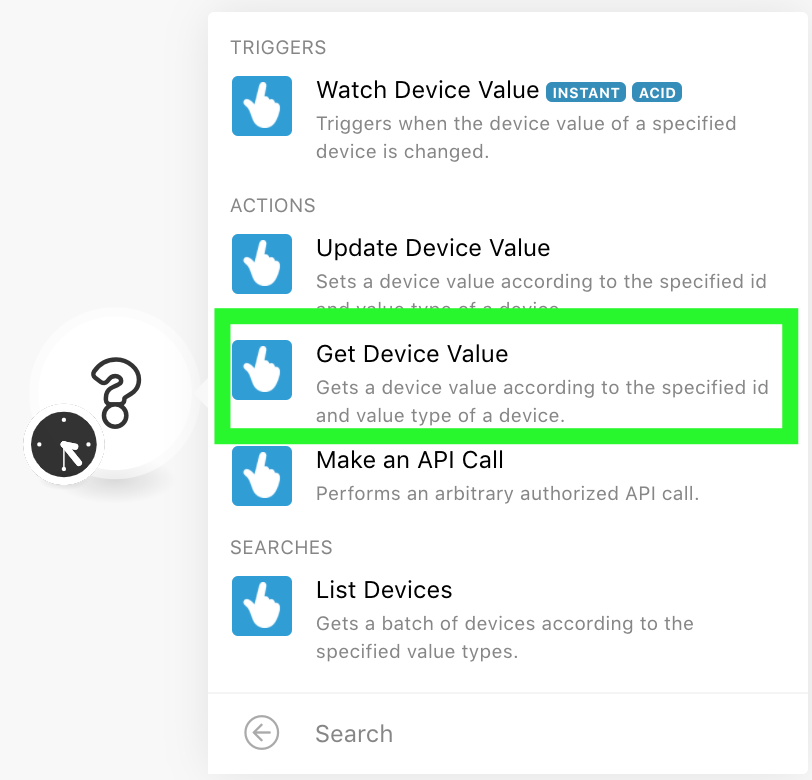
- Get Device Value — retrieves data at predetermined intervals (recommended for continuous readings like temperature)
- Watch Device Value — logs every device state change to the spreadsheet
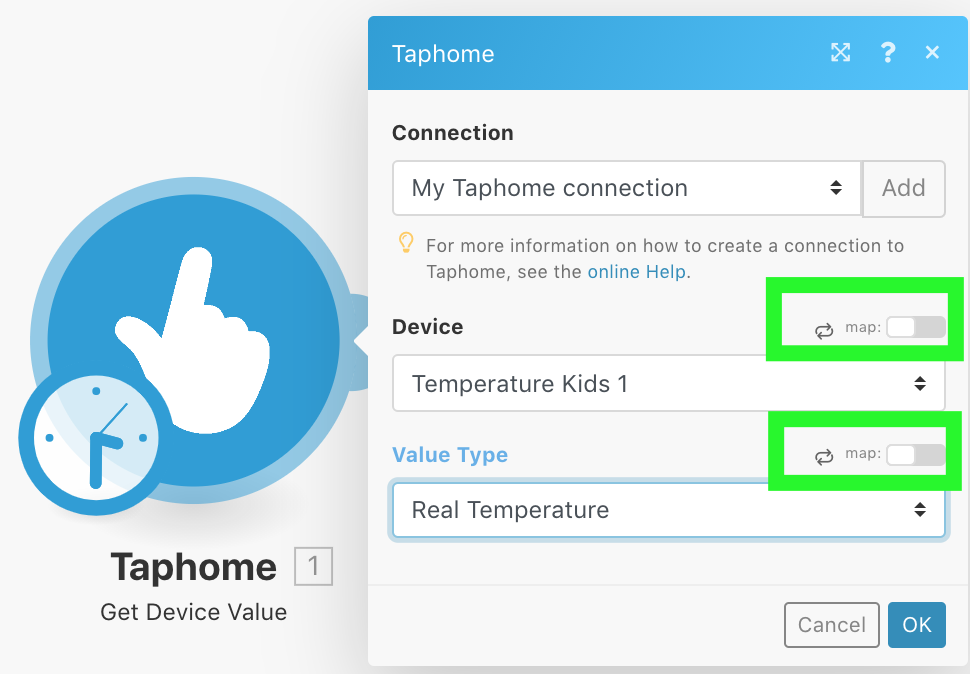
Critical Configuration Step
Disable the “map” checkbox before selecting your target device.
Step 5 - Google Sheets Connection
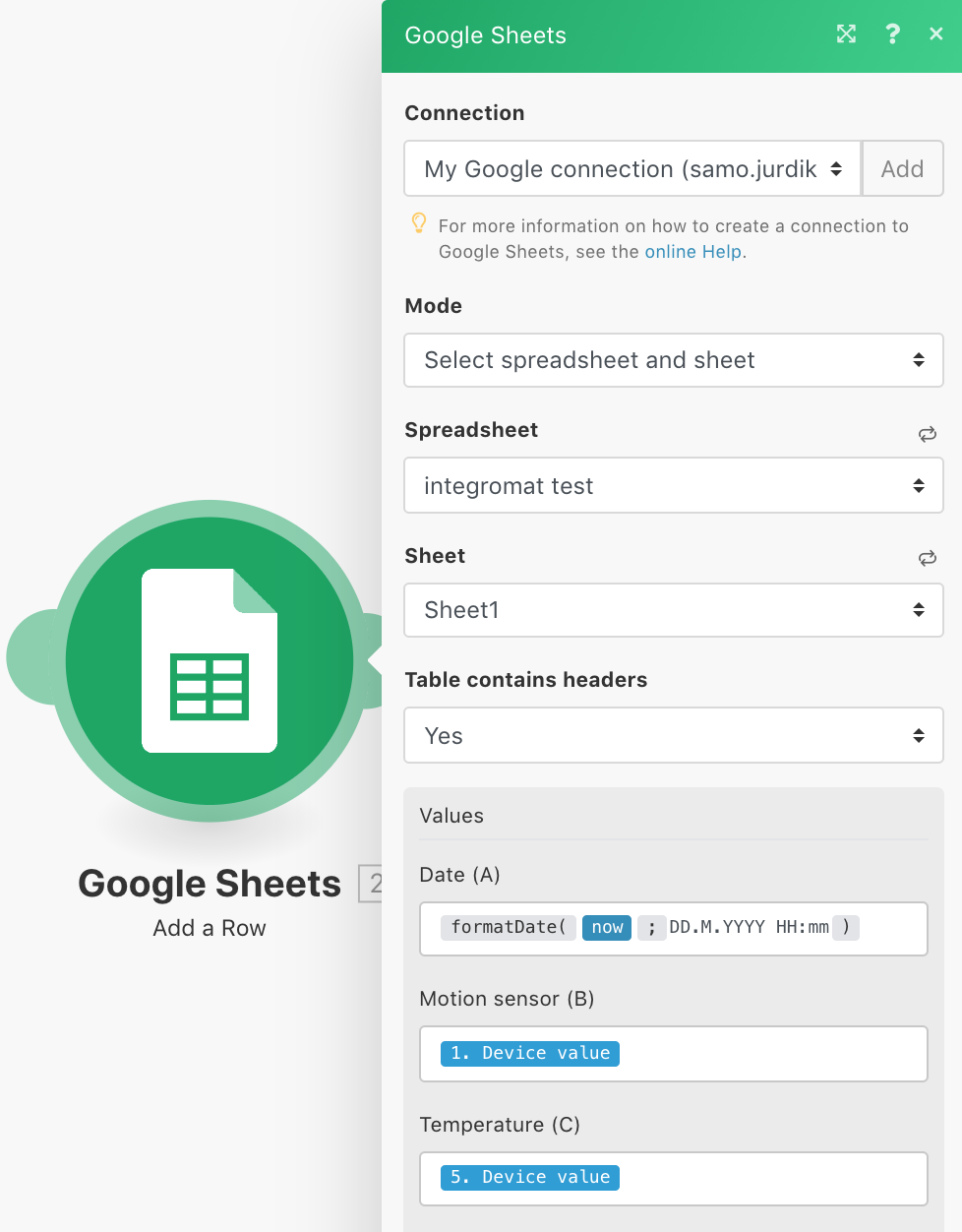
Click the right connector on the TapHome module to attach Google Sheets, then select your spreadsheet column and choose “Get value.”