Exposing Devices in the Integration Protocol
If you want to expose devices in the Integration Protocol, follow these steps:
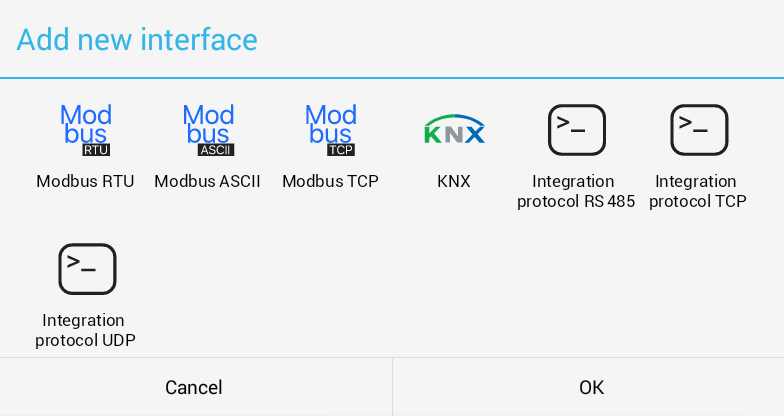
- Navigate to Expose Devices and select Add new interface .
- Choose one of the offered interfaces:
- Integration Protocol RS485
- Integration Protocol TCP
- Integration Protocol UDP
Interface Configuration
After adding the interface:
- Fill in the other parameters.
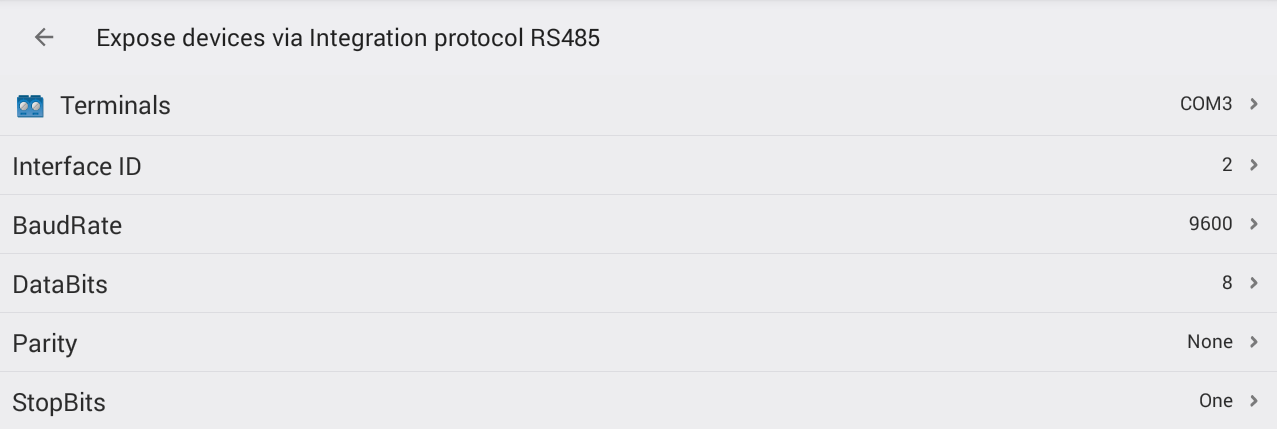
- Set a unique Interface ID for each interface if you are using address mode.
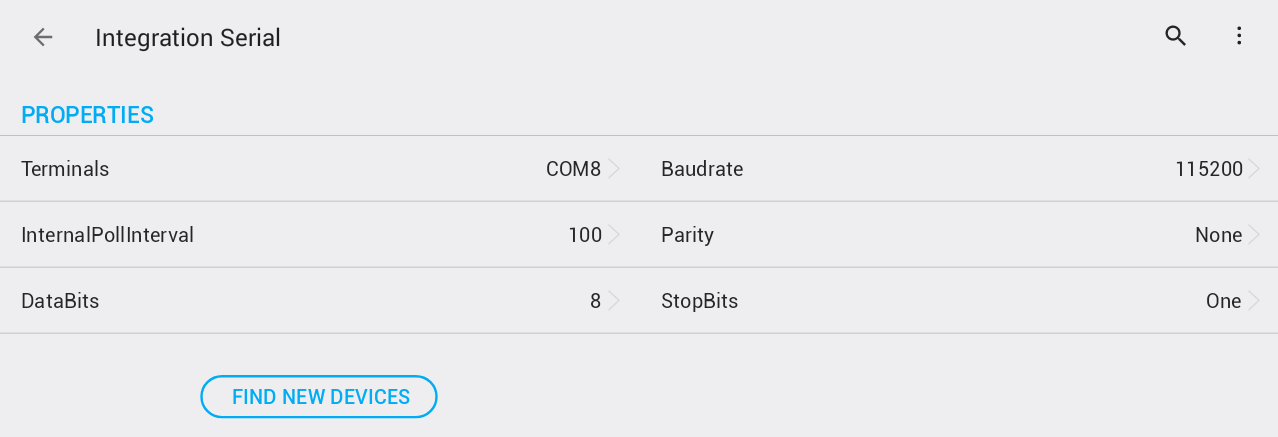
- Select the terminal for communication and fill in the communication parameters for RS485.
- Set all serial line parameters according to the requirements of the connected client.
Port Settings
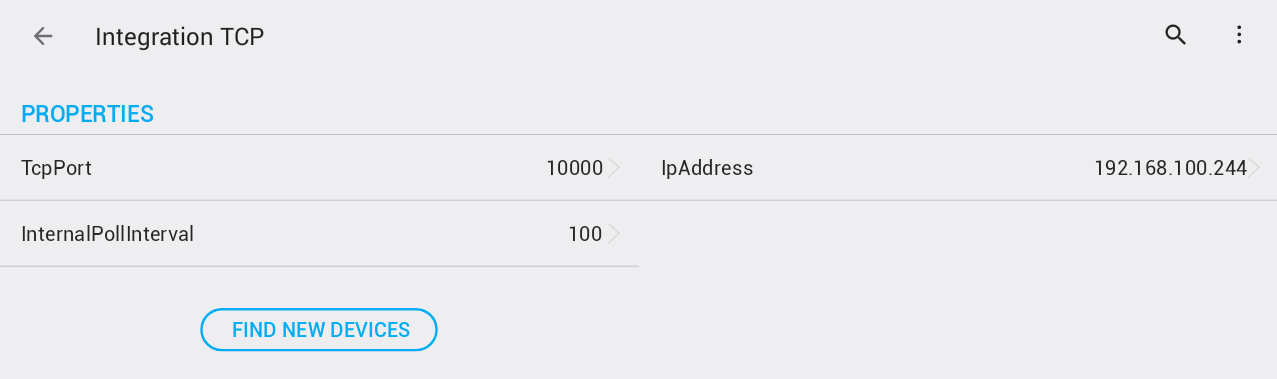
- Set the TCP port of the slave interface.

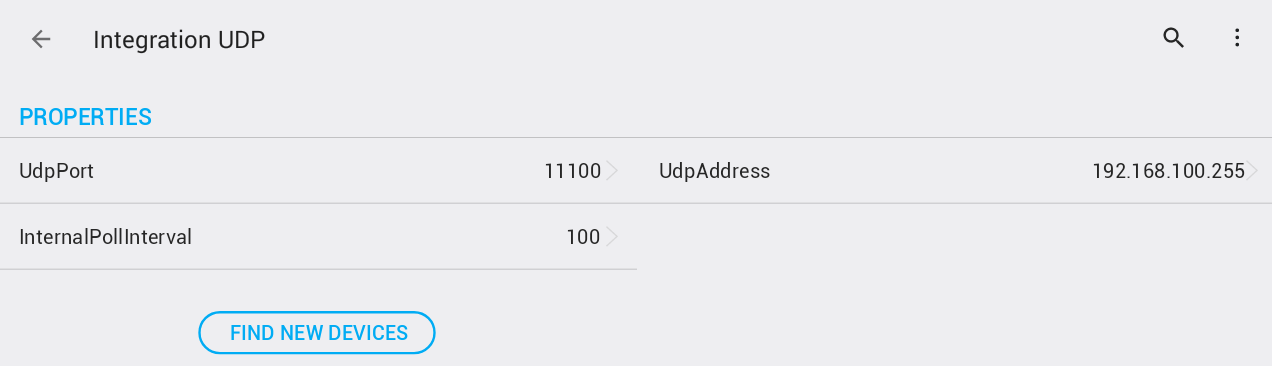
- Set the UDP port of the slave interface.

Adding Devices
- Click Add Device to add your devices to the list of exposed devices.
- Select a device from the list of offered devices.
- Already added devices will be grayed out.
- After adding, the device will appear in the device list for the integration protocol interface.

Device Management
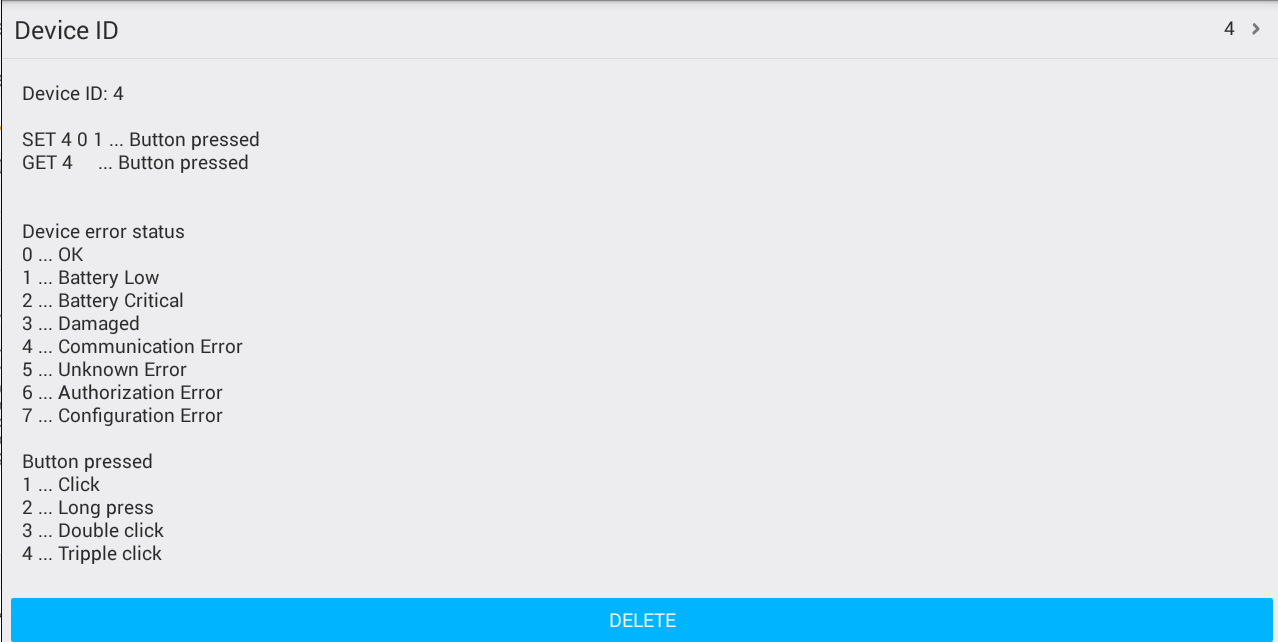
- Click on a device to:
- View information about it.
- Change its automatically generated device ID.
- Remove the device from exposed devices.
Setting Parameters for Integration Protocol Interfaces
- Select one of the integration protocol interfaces.
- Set the parameters according to the previously selected Expose Devices interface.
Serial Interface
- Select the terminal and communication parameters for the serial line.
TCP Interface
- Set the IP address and port of the slave interface.
UDP Interface
- Set the UDP address and port of the slave interface.
- The UDP address can be in broadcast address format (with 255 in the broadcast portion).
- Example: All addresses in the 192.168.100 subnet are addressed.
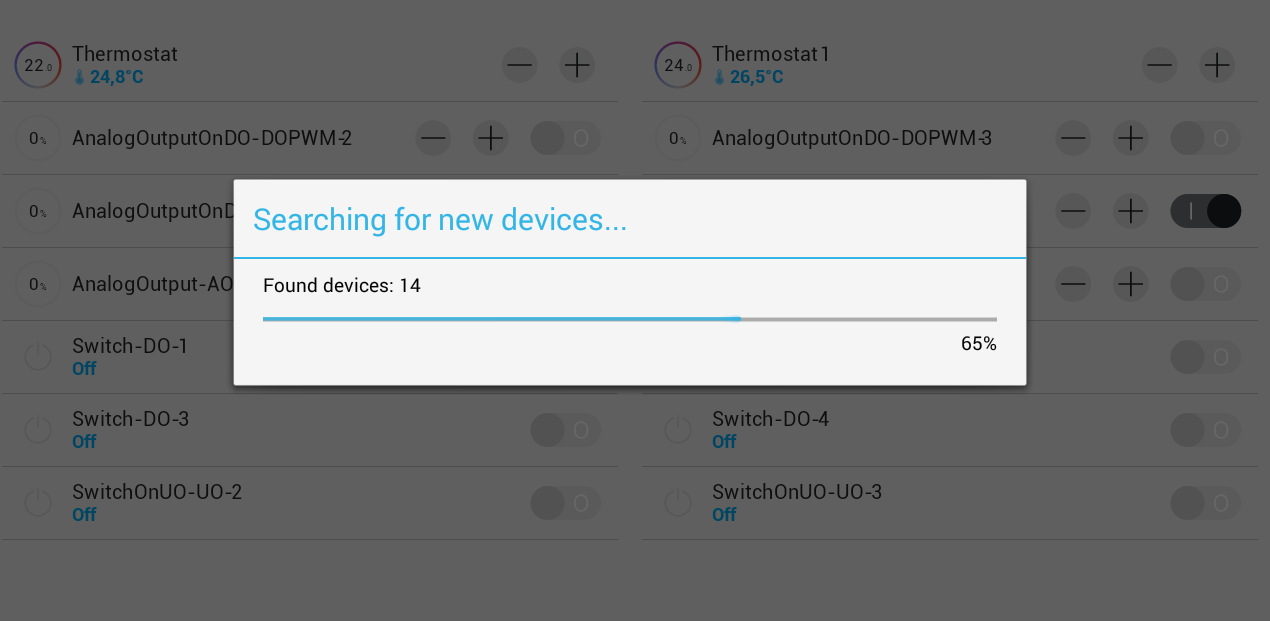
Saving and Finding New Devices
🚨 Important: After filling in the parameters, save them before proceeding.
- Click Find new devices in the configured parameters.
- The Slave Core, where the exposed devices are configured, must be ready at this moment.
Final Steps
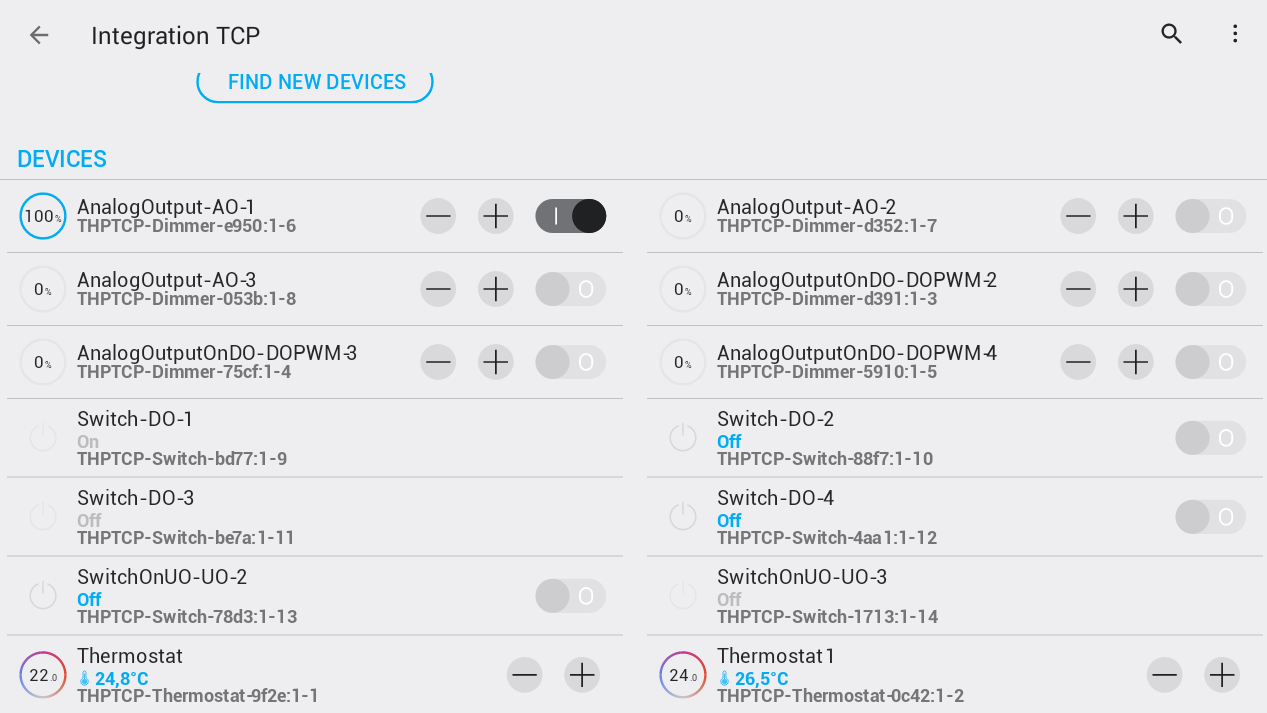
- After searching, all found devices will be displayed with their original names.
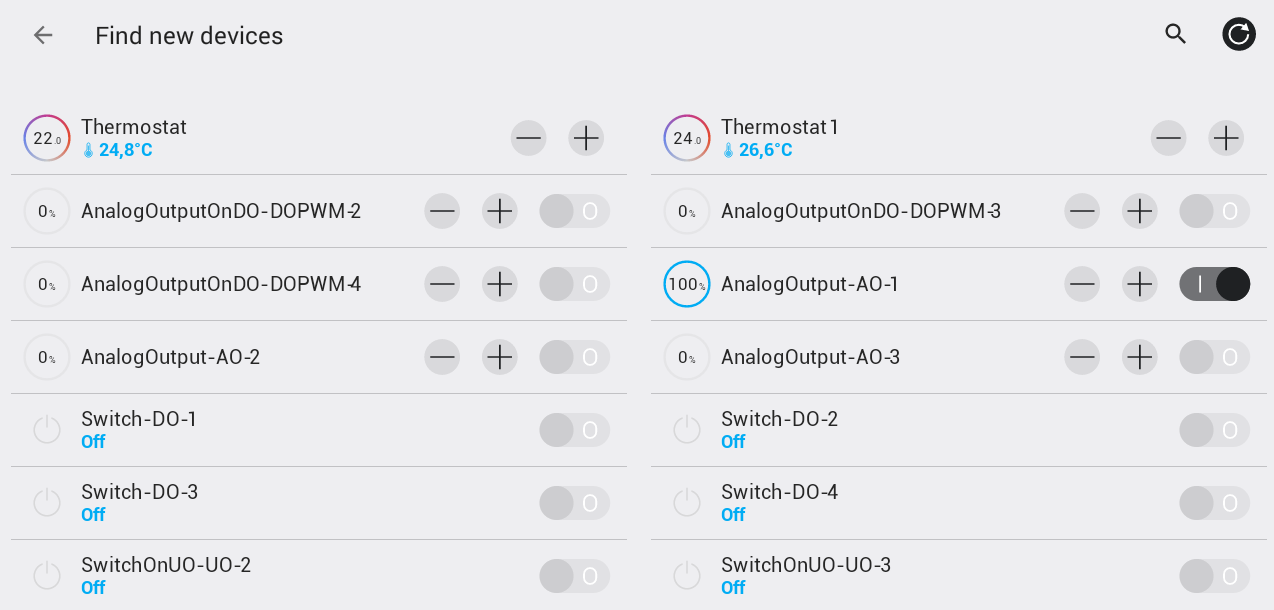
- Return to the main interface screen to view all devices.
- Device serial numbers end with:
- Slave interface ID
- Slave device ID