This configuration applies to all TapHome Push Button devices, including physical touch devices (PB5, PB6) and UI devices such as 32UI modules.
Important: This functionality is evaluated in the firmware of TapHome modules and therefore is not available on virtual buttons. It only works on physical Push Button devices connected to the bus.
Configuration
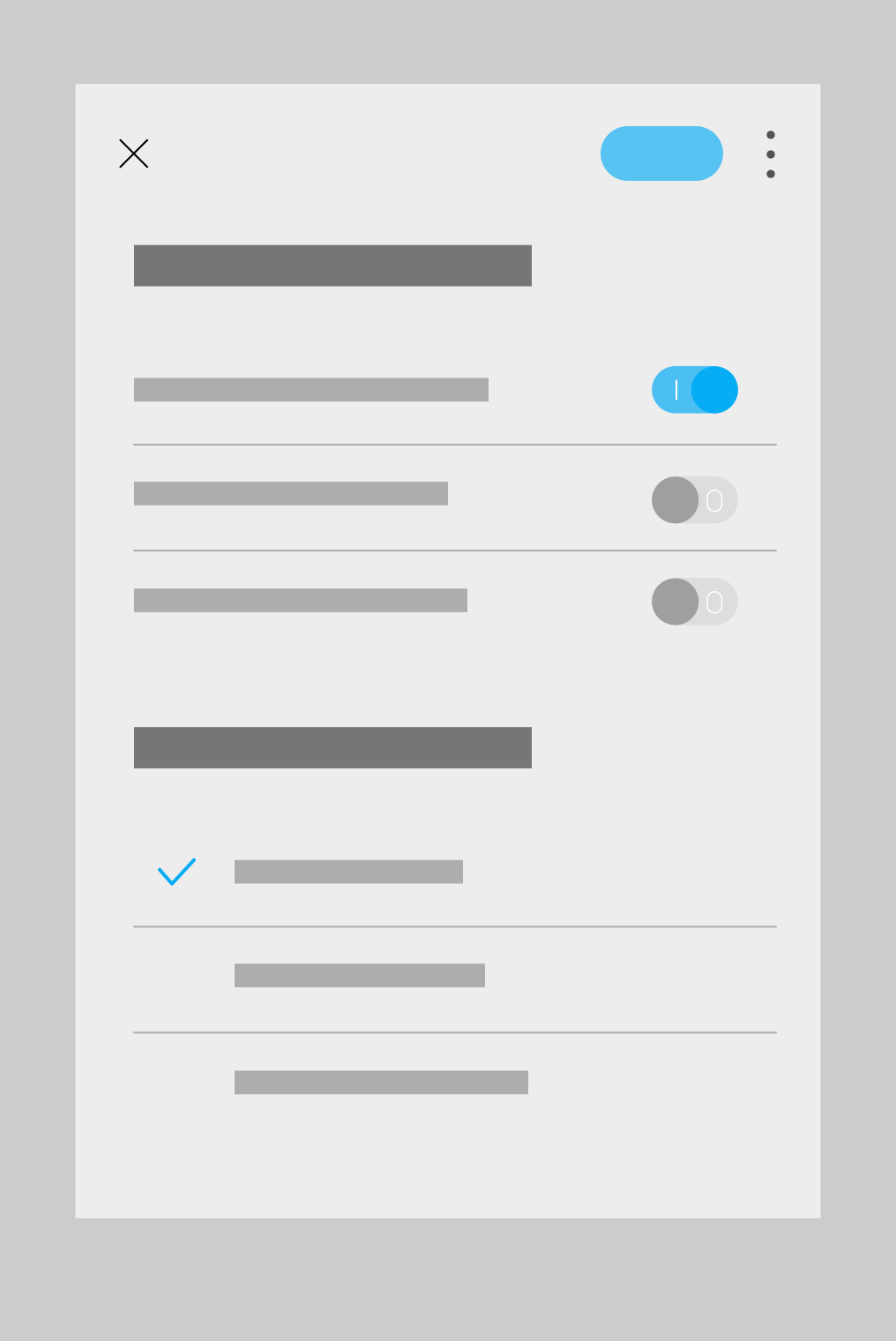
To adjust the response speed of the buttons, select one or more buttons and modify these settings:
Supported Click Types
The fewer options you select, the less time the algorithm will need to wait before executing the push button action. For example, if ‘Support Long Press,’ ‘Support Double Click,’ and ‘Support Tripple Click’ are all disabled, the push button action will be triggered as soon as the button is pressed, without waiting for it to be released.
- ✅ Support Long Press
- ❌ Support Double Click
- ❌ Support Tripple Click
If all three options are disabled, the push button action will be triggered immediately when the button is pressed, without waiting for it to be released.
The fewer functions, the faster the response
Algorithm for interpreting button presses
If you disable long press, double-click, and triple-click, the action will be triggered immediately when the button is pressed, without waiting for release.
How it works:
- Without long/double/triple press → Short press is evaluated immediately on press
- With long press → The module must wait for release to distinguish a short press from a long press
- With double press → Short press is sent only after the set time has elapsed, once it’s certain that a second press did not occur
- With triple press → Double press must wait to see whether a third press occurs within the defined time
Conclusion: The more functions you enable, the longer the waiting time before the action is triggered.
Longpress duration
Adjust the duration required to longpress on your button- Default (400 ms) — ⭐ default
- Longer (750 ms)
- Longest (1000 ms)
Click speed
Adjust the speed required to double or triple click on your button- Default (150 ms) — ⭐ default
- Slower (275 ms)
- Slowest (400 ms)
Response speed on the bus
To speed up the button response, you need to keep the number of modules on a given bus segment low, because the protocol uses round-robin communication.
Recommendation: fewer than 20 modules on a single bus segment.
Solution for larger installations
For larger installations, you can use a Bus Extender device, which expands the available bus branches and thus allows you to connect more modules without slowing down the response.
Practical tips
- Minimize the allowed click types - If you don’t need double-click or triple-click, disable them
- Optimize bus branches - Split modules across multiple branches using a Bus Extender
- Adjust the timers - Shorten the long-press and double-click detection times as needed