Most of the Smart rules provide a set of actions to choose from. Keep in mind that set includes only actions relevant for input & output device combination used in the Smart rule.
Action page
Basic (default) set
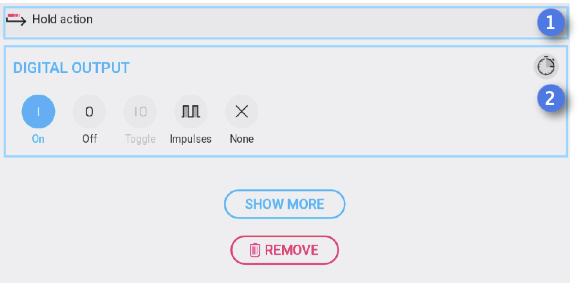
1. Action type - predefined by the system
2. Basic set of actions - most commonly used for the chosen output device type
Advanced (“Show more ” button) set
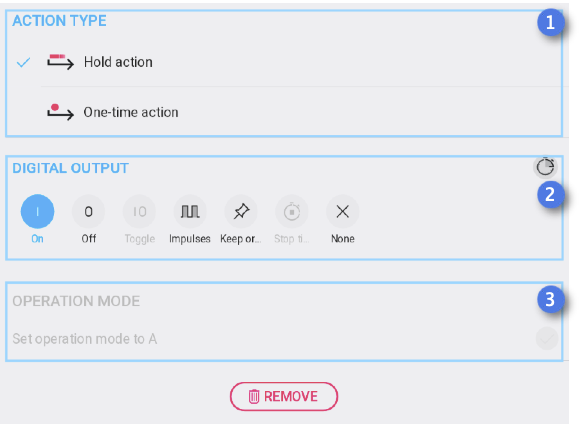
1. Action type - all available options, Hold action and One-time action (if applicable)
2. Advanced set of actions - all available for chosen type of output device
3. Operation mode - Available for One-time action only. Smart Rule performs an action and set device into Automatic mode (works only when there is another Smart Rule that could take the control over the output). Operation mode switch is very special and rarely used feature
Action type - the way how the action is applied to the actuator
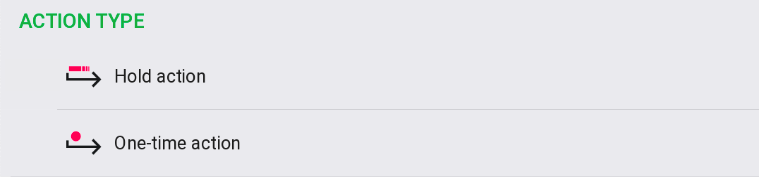
There are two main types of action:
1. One-time action - the action takes place once and immediately afterwards the Smart rule no longer controls the respective output. This type of action is typical for push buttons that works like an impulse but could be used for other devices. Icon for One-time action is not filled, just contoured by accent color.
2. Hold action - the action is permanent, Smart rule controls the device as long as the condition for the action lasts. Icon for Hold action is filled by accent color.
Actions in details
 Turn on
Output device is turned ON
 Turn off
Output device is turned OFF
 Toggle
If the output device is digital output (switch), action turns the switch into opposite state as it was before the action.
If the device is value (dimmer, analog output etc.), action toggle value between 0% and Value (fixed) / Last Value (dynamic - value has been set manually or by other Smart rule as the non zero value before the action takes place).
Notice, that Toggle action is available as One-time action only.
 Set value
Value of the output device is set to desired level. Available for continuously controlled outputs (dimmers, analog outputs etc.).
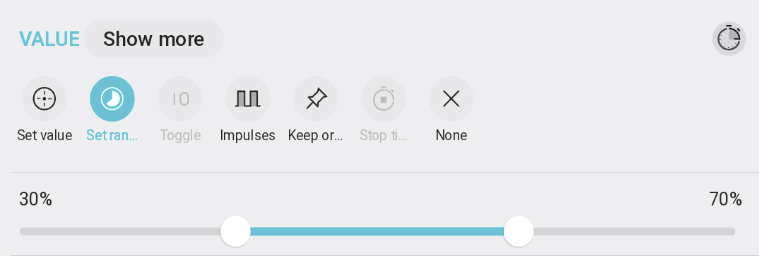
 Set range
The device is set to the value from the defined range, which is closest to the last device value before the action
Example: Dimmed hallway light with push button and motion sensor. You want the button to turn the light to 100%, but the motion sensor should only set it to 20%. To avoid a situation where the user first turns on the light with the button to 100%, but then the motion sensor immediately detects them and reduces the value to 20%, the motion sensor should use “Set range: 20-100%”. This way, when motion is detected, the value is set to the closest value within the defined range. If the light was at 0%, it will be set to 20%, but if it was anywhere between 20-100%, it will keep its current value and not be reduced back to 20%.
 Impulses
Output device is switched between two states/values defined as On and Off
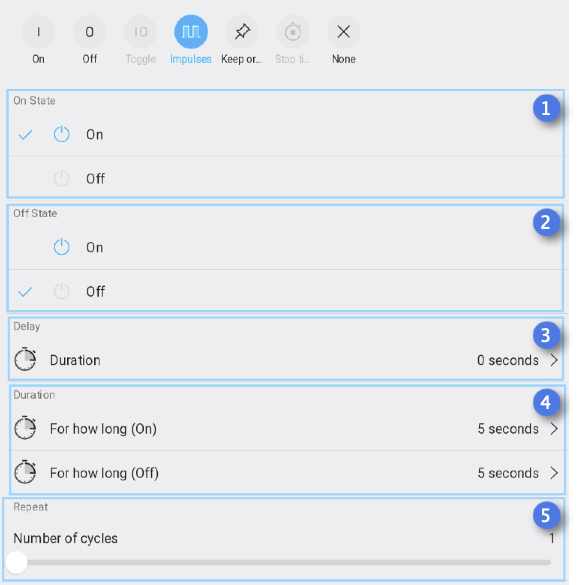
1. On State - what state is considered to be ON
2. Off State - what state is considered to be OFF
3. Delay - Initial delay of the impulse action
4. Duration - time specified for both actions (On and Off)
5. Repeat - number of cycles (repetitions) - how many impulses are generated within the action
 Keep original
Output device is keeping actual state/value
 Stop timer
One-time action that stops timer action started by other Smart rule
 None
None
No action. Smart Rule does nothing (is bypassed) and makes output device available for other Smart Rule or manual control.
Timer
Allows performing action with some initial delay and duration. As One-time action it performs action once and then leaves output device to be available for other Smart Rules or manual control. As Hold action it performs action for specified time but after that it checks the state of the input device (trigger). If the trigger still keeps triggering state, timer keeps output device in the action state until release. Even then it leaves output device to be available for other Smart Rules or manual control.
Notice that Timer performs specified action only, never set the output device back to state it was before the action.
Combined actions
Continuously controlled devices (analog outputs, dimmers etc.) provide separate control for Switch (On/Off/Toggle) and Value. These duality is supported by the Smart Rule actions so you can choose whether the action affects the Switch or Value or Both. Such advanced feature allows you to control Switch by one Smart Rule and Value by another which is very useful for lighting management etc.
Basic view
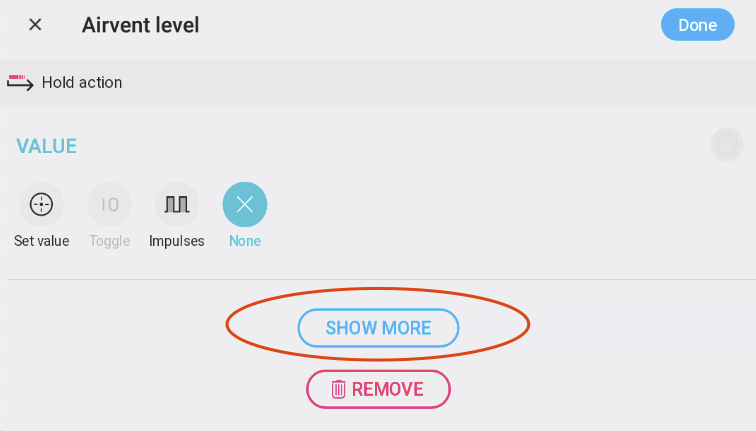
Advanced view
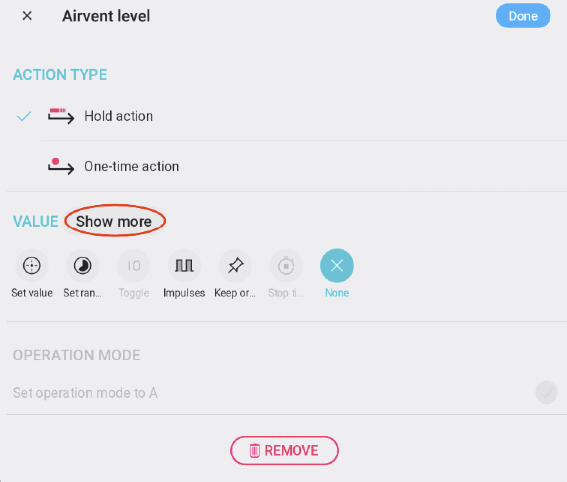
Show more - opens menu for combined action
Advanced view with combined action menu
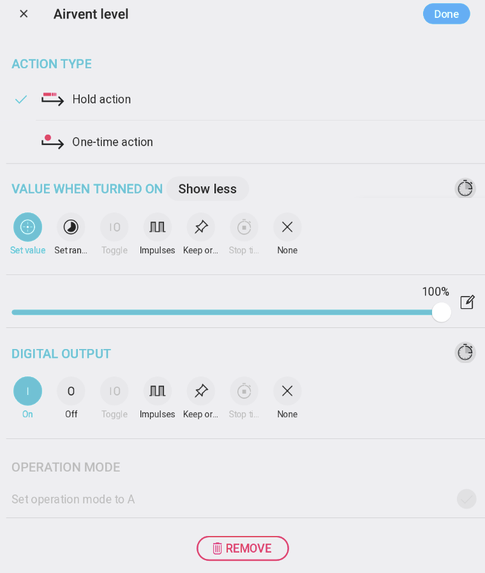
Value - action settings for device value part only
Digital output - action settings for device Digital output (Switch) part only
Additional actions
Multi-Value Switch actions
 Next
Next
Sets the device to the next value in the sequence
 Previous
Sets the device to the previous value in the sequence
Operation mode actions
 Set Automatic mode
Sets the device Operation mode to Automatic , allowing Smart Rules to control the device
 Set Manual mode
Sets the device Operation mode to Manual , preventing Smart Rules from controlling the device
Command actions
These actions are typically used for specific device commands and advanced control scenarios.
Push button commands
 Press
Press
Simulates a button press
 Double click
Simulates a double button press
 Long press
Simulates a long button press
 Tripple click
Simulates a triple button press
Blinds calibration commands
 Start Calibration
Initiates the calibration process for blinds
 Calibrate Up
Calibrates the upward movement of blinds
 Calibrate Down
Calibrates the downward movement of blinds
Blinds force mode commands
 Force up start
Forces blinds to start moving up
 Force up stop
Stops the forced upward movement
 Force Up Time
Sets the duration for forced upward movement
 Force down start
Forces blinds to start moving down
 Force down stop
Stops the forced downward movement
 Force Down Time
Sets the duration for forced downward movement